
smallest.space web radio
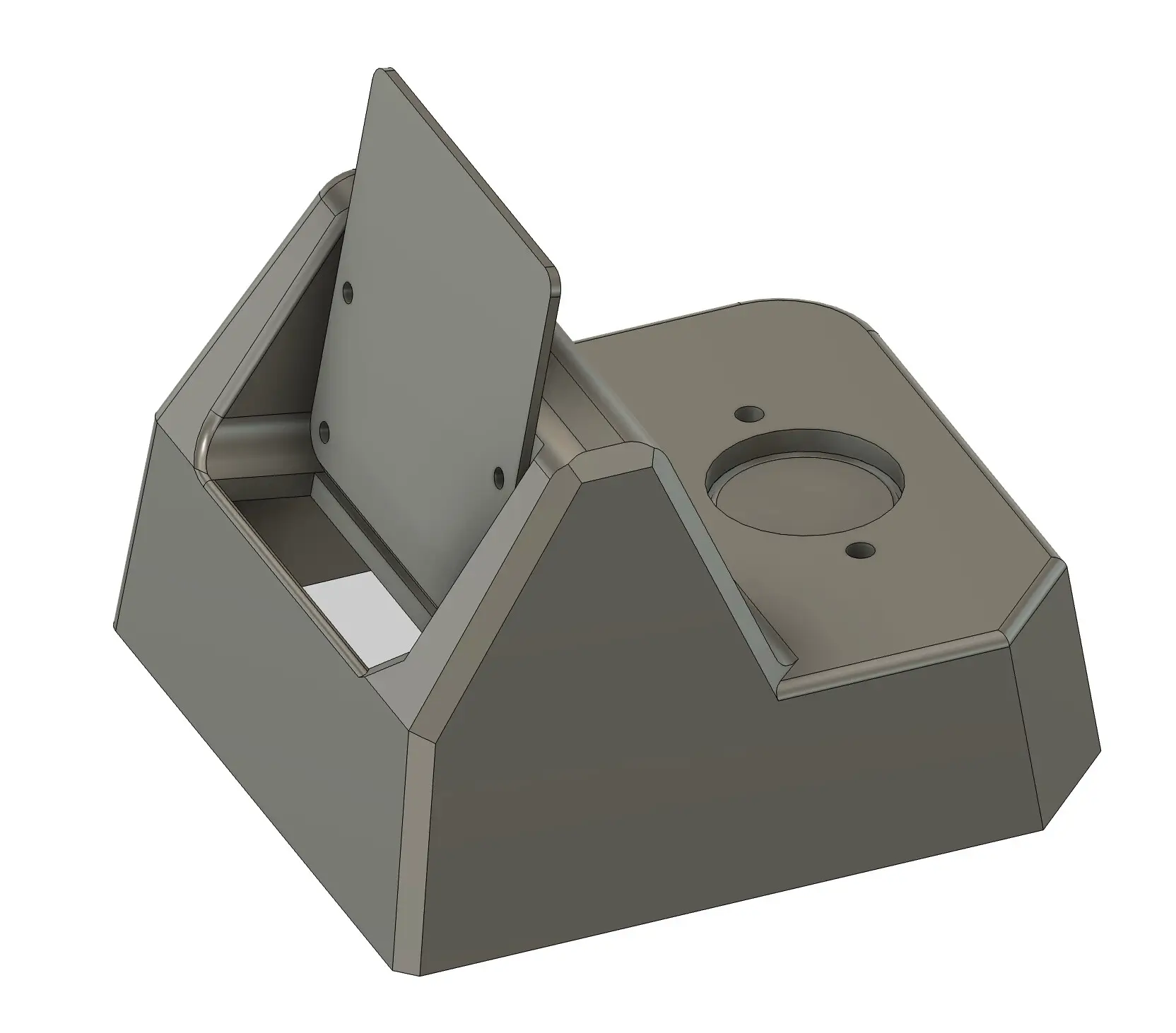
The web radio is a little computer that streams web radio over wifi. It outputs to either a built in speaker or a 3.5mm jack in line-out or headphone mode. Setting up the device (setup wifi + specify the URL you’d like to stream music from) requires an app (see Setup below).
The entire device, including the circuit design and custom PCB, the clay mold design, and firmware are all hand made / custom (see the links on the bottom for a full explanation).
Video walkthrough
This video is an attempt to walk through all of the features on the device. This video could grow out of date, hopefully not, but please keep that in mind.
Buttons
Three buttons handle everyday use, plus a separate reset button.
| Press | What it does |
|---|---|
| Volume Up / Volume Down | Turn the volume up or down |
| Mute | Mute / unmute (THIS BUTTON MAY BE UNRELIABLE - this is something I need to fix, but you may need to press it a few times) |
| Volume Up + Volume Down together | Switch the output mode (see below) |
| All three together, quick tap | Blink the firmware version on the status light |
| All three together, hold for 15 seconds | Factory reset |
Output modes
Hold Volume Up and Volume Down together to step through where the audio comes out. Each press moves to the next mode and loops back round:
- Speaker — the small internal speaker
- Line-out — fixed-level output on the 3.5mm jack, for an amp or powered speaker (volume buttons don’t apply)
- Headphone — the 3.5mm jack with volume control
Your choice is remembered after powering off.
Setup
NOTE IF THE DEVICE WAS PREVIOUSLY SETUP, YOU’LL NEED TO PRESET THE RESET BUTTON FOR 5 SECONDS TO PUT THE DEVICE BACK IN SETUP MODE
To setup the device, you’ll need either the iOS app or the Android app.
After download the app and opening it on your phone / tablet, you’ll be prompted for one ore more permissions - for whatever it’s worth, the reason the app asks for permission is because it uses bluetooth to connect to the web radio device. To make this easier, it scans for local bluetooth devices to look for a smallest.space device. Although the app only is looking for smallest.space devices the app can see all local devices and these could be used to triangulate your location. For this reason (and it is a good reason) Android and iOS require this permission.
After granting permission, make sure your device is plugged in with a USB-C cable to a wall outlet. The device doesn’t require much power, but if you’re having issues getting the device setup it might be worth trying a different USB-C power adapter.
The power LED should be on, and the white LED labeled status should begin to blink, indicating the device is in setup mode. From there, if you open the iOS/Android app you should be able to follow the instructions there to get your device setup.
If you’re having issues, resetting the device back to factory (aka my desk!) settings is a good step to take - see “Changing settings (reset)” below
Options
Web stream URL
Note when you’re setting up the device you’ll have an opportunity to choose a different web streaming URL. This is the only opportunity you’ll have to set this, changing the URL requires resetting the device (it’s a quick process but does require entering your WiFi details again so be warned!).
The device supports MP3 and ACC streaming formats. Other formats may be supported, but are untested.
Changing settings (reset)
If your device is not working (not connected to the network, audio is not playing) or if you’d like to change the URL the device is streaming from, resetting the device and going through the setup flow again is a good (and if I’m honest, the only!) troubleshooting step. The button labeled reset (see below) can be held for > 5 seconds, and you should see the status light begin to blink quickly indicating the device is being reset.
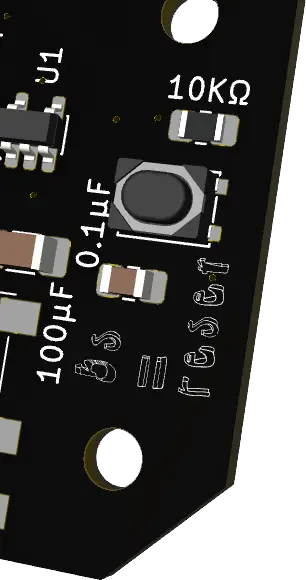
(likely obvious, but you need to have the device plugged in and powered to be able to reset it)
Over-the-air updates
The device supports over-the-air updates (“OTA”), and on each startup will attempt to reach out to look for new versions of firmware.
Troubleshooting
What does the status light mean?
The status light can be used to tell you the following info:
| Pattern | Meaning |
|---|---|
| Slow blink (500ms on/off) | Provisioning mode - waiting for BLE client to connect |
| Double blink with pause (100ms on, 100ms off, 100ms on, 100ms off, 700ms pause) | BLE client connected - provisioning in progress |
| Fast blink (100ms on/off) | Reset in progress |
| Very fast blink (50ms on/off) | Firmware update (OTA) downloading |
| Off | WiFi connected / audio streaming (normal operation) |
What does the other light labeled power tell me?
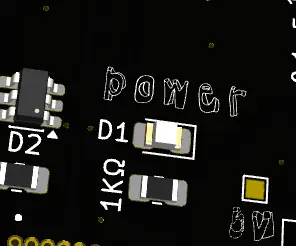
This LED just tells you if there is power coming into the device. If this is not lit, then either the on / off switch is set to the off position (and so the device is off!), or the device is not plugged in, or the USB-C cable or power adapter are bad or incompatible, or (hopefully not this one) the device is dead.
Read more
Read more about the implementation of this project below.